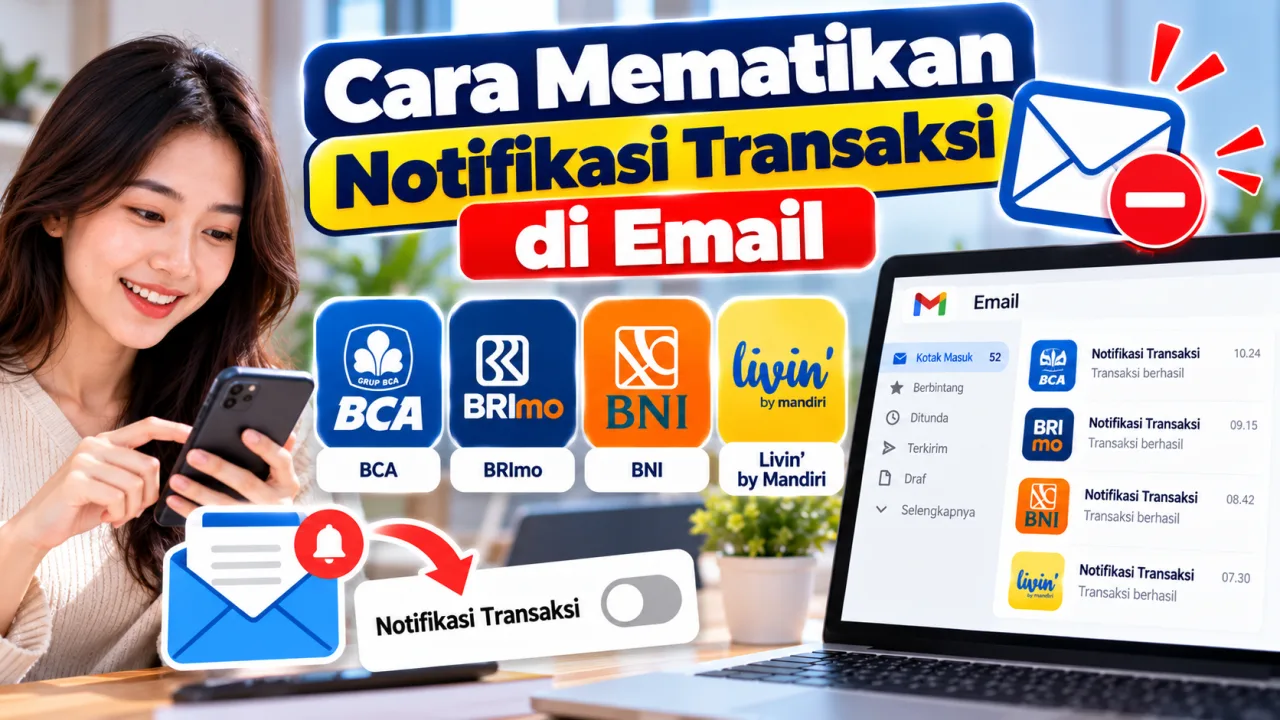
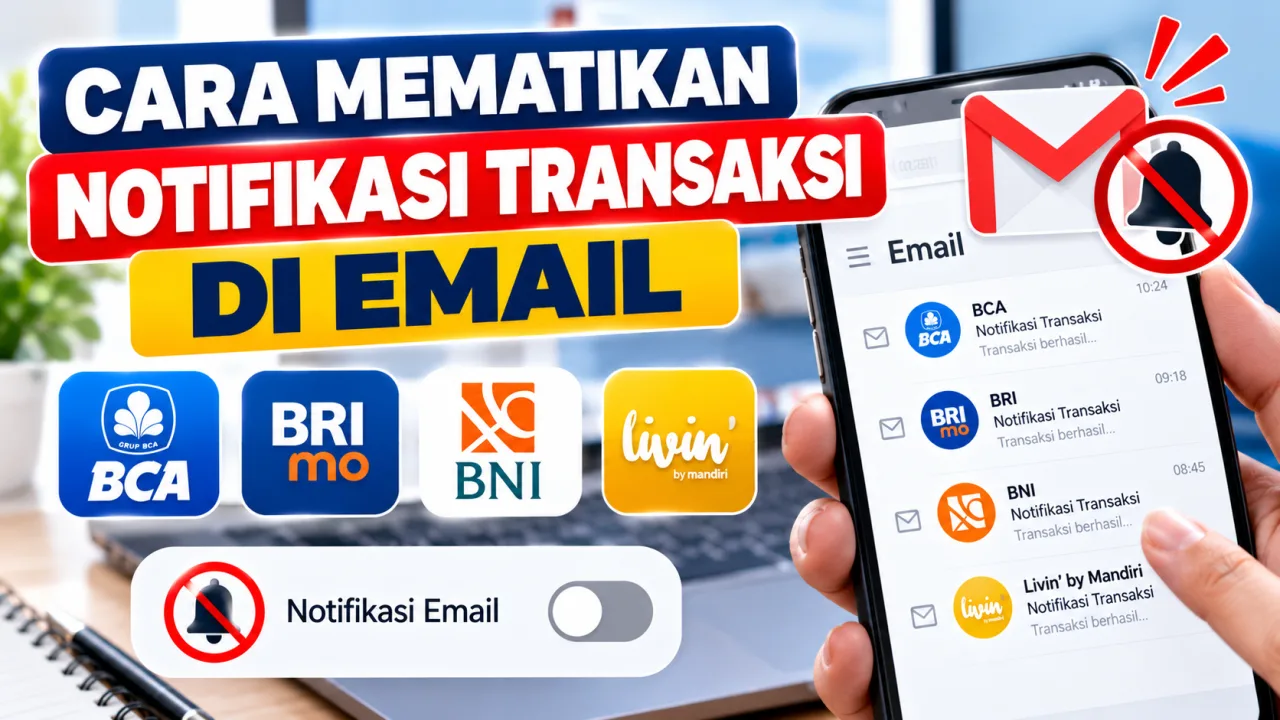
Banking transaction notifications sent via email are useful for monitoring money coming in and out of an account. However, for customers who frequently make transfers, payments, or online shopping, these notification emails can pile up and clutter the inbox.
Therefore, some customers look for ways to turn off BCA, BRImo, BNI, and Livin’ by Mandiri transaction notifications in their email.
It should be noted that each bank has different policies and notification settings. Some banks provide settings directly through the application, while other banks require customers to contact official services to ensure changes to notification services.
Here is the guide you need to know before disabling banking transaction notifications via email.
1. How to Turn Off BCA Transaction Notifications in Email
For BCA customers who use the myBCA application, transaction notification settings via email can be done directly from the app.
BCA provides settings for both financial and non-financial activity notifications. Several types of financial activities that can be managed include transfers, payments and top-ups, investments, cardless, banking products, protection, and QRIS transactions.
Here are the steps to manage email notifications through myBCA:
- Open the myBCA application.
- Log in using the registered account.
- Select the settings icon in the top right corner.
- Go to the Personalization section.
- Select the Notifications menu.
- Go to the Email section.
- Select the type of notification you want to turn off.
- Slide the settings button to the inactive position.
- Select Yes to confirm the changes.
Once the settings are successful, email notifications for the selected category will be disabled.
Please note, if email notifications are turned off, notifications through the myBCA application remain available. Thus, customers can still monitor transaction information through the application.
2. How to Turn Off BRImo Transaction Notifications in Email
BRI customers who use BRImo can also receive notifications regarding account activity. However, email notification settings need to be distinguished from BRImo transaction notification features sent via WhatsApp or SMS.
BRI provides a BRImo Transaction Notification feature that can be accessed through the All Your Accounts menu. This feature provides real-time transaction information via WhatsApp or SMS.
To manage this transaction notification feature, here are the steps published by BRI:
- Open the BRImo application.
- Log in using your personal account.
- Select the All Your Accounts menu.
- Select the account you want to manage.
- Go to the Transaction Notification Status section.
- Select the available notification channel, which is WhatsApp or SMS.
- Follow the setup instructions on the application.
However, these steps are a guide for WhatsApp or SMS notification settings, not a specific procedure to turn off transaction emails.
If transaction notification emails are still coming in, customers should contact Contact BRI at number 1500017 or official BRI channels to ask whether the type of notification email received can be disabled.
Do not delete the registered primary email address without understanding its impact on banking services, because email can also be used to receive important information regarding the account.
3. How to Turn Off BNI Transaction Notifications in Email
BNI provides transaction notification services through several channels, including email and SMS on the BNI Internet Banking service. These notifications help customers know transaction activity happening on their account.
For BNI customers, notification settings need to be adjusted according to the service used. Available official BNI guides explain SMS notification services, but have not provided specific steps that can be confirmed to disable all transaction notifications via email in BNI Mobile Banking.
If you want to stop transaction notification emails, customers can request information and assistance through BNI Call.
Steps that can be taken:
- Prepare information regarding the type of transaction email received.
- Contact BNI Call at number 1500046.
- State that you want to turn off transaction notifications sent to your email address.
- Ask whether the settings can be done through digital services or require staff assistance.
- Follow the verification process and official instructions from BNI.
Customers can also visit the nearest BNI branch office if settings need to be done through bank officers.
It is important to check first whether the email received is a bank transaction notification, card notification, or other service information. Each type of notification may have different settings.
4. How to Turn Off Livin’ by Mandiri Transaction Notifications in Email
Livin’ by Mandiri is Bank Mandiri's digital banking application that provides various transaction services and account information.
Bank Mandiri provides email address settings through the Livin’ application. However, available official guides explain how to change the email address, not specific steps to disable all transaction notifications via email.
Here is how to view and manage the registered email address in Livin’:
- Open the Livin’ by Mandiri application.
- Log in using your personal account.
- Tap the Profile menu in the top left.
- Select My Profile.
- Go to the Account Details menu.
- Select Change to view account data settings.
- Check the registered email address.
If your goal is to stop transaction notification emails, do not directly change the email address to an unused address. It is better to contact Mandiri Call 14000 to ensure the email notification deactivation procedure matches the type of service used.
Changing the email address also does not always mean all transaction notifications will stop. Therefore, make sure the officer explains the impact of the change before agreeing to it.
5. Is It Safe to Turn Off Bank Transaction Notifications in Email?
Turning off transaction notifications via email can help reduce incoming messages to the mailbox. However, customers need to consider the security function of these notifications.
Transaction emails can be one way to find out account activity, including unrecognized transactions. If email notifications are turned off, make sure there are still other ways to monitor account activity.
Several things that should be done before disabling email notifications include:
- Make sure transaction notifications through the banking application remain active if available.
- Check account statements periodically.
- Activate transaction notifications through other channels provided by the bank.
- Do not ignore notifications regarding transactions you never made.
- Make sure the registered email address and phone number are still active.
Never give your PIN, password, MPIN, or OTP code to anyone claiming to be a bank officer. The bank does not need these secret codes to help manage email notifications.
Things to Note
The methods to turn off BCA, BRImo, BNI, and Livin’ by Mandiri transaction notifications in email are not entirely the same. BCA customers can manage email notification categories directly through the myBCA application.
Meanwhile, BRImo, BNI, and Livin’ by Mandiri customers need to confirm deactivation procedures through the respective official bank services because available guides do not yet confirm the presence of a specific button to turn off all transaction emails.
Before disabling notifications, make sure you still have a way to monitor account activity so that suspicious transactions can be identified immediately.